Character and creator#
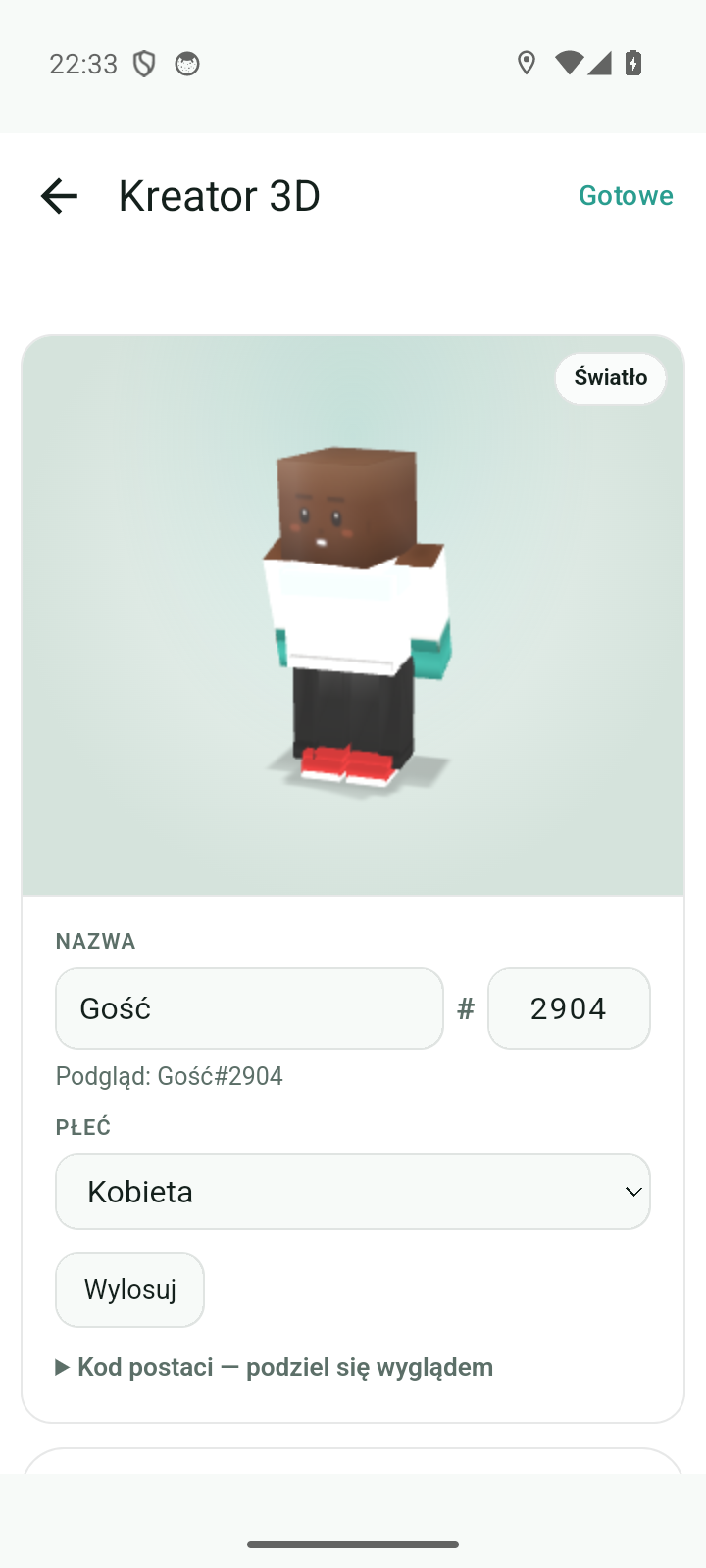
Your character is your 3D figure in Fyndi: the piece that walks around the map, the figure visible in the AR view's mini-map and in the Profile, and in the camera view — your legs and shoes. You put the look together yourself in the creator: name, hairstyle, clothes, accessories, colours and vehicle.
Where you open the creator#
- On the bottom bar tap the Account tab.
- In the Character row (subtitle “Creator 3D: hairstyle, clothes and colours”) the 3D creator opens.
- You change what you want and save — after saving you see the same colours on the map, in the Profile and in the AR view.
You create your first character right after setting up an account: the creator takes you through four steps (Step 1 / 4: Name → Gender → Look → Summary), and the last button is Enter the map. A “waist up” preview of the character is also in the Profile — next to the stats (Account and profile).
What you set in the creator#
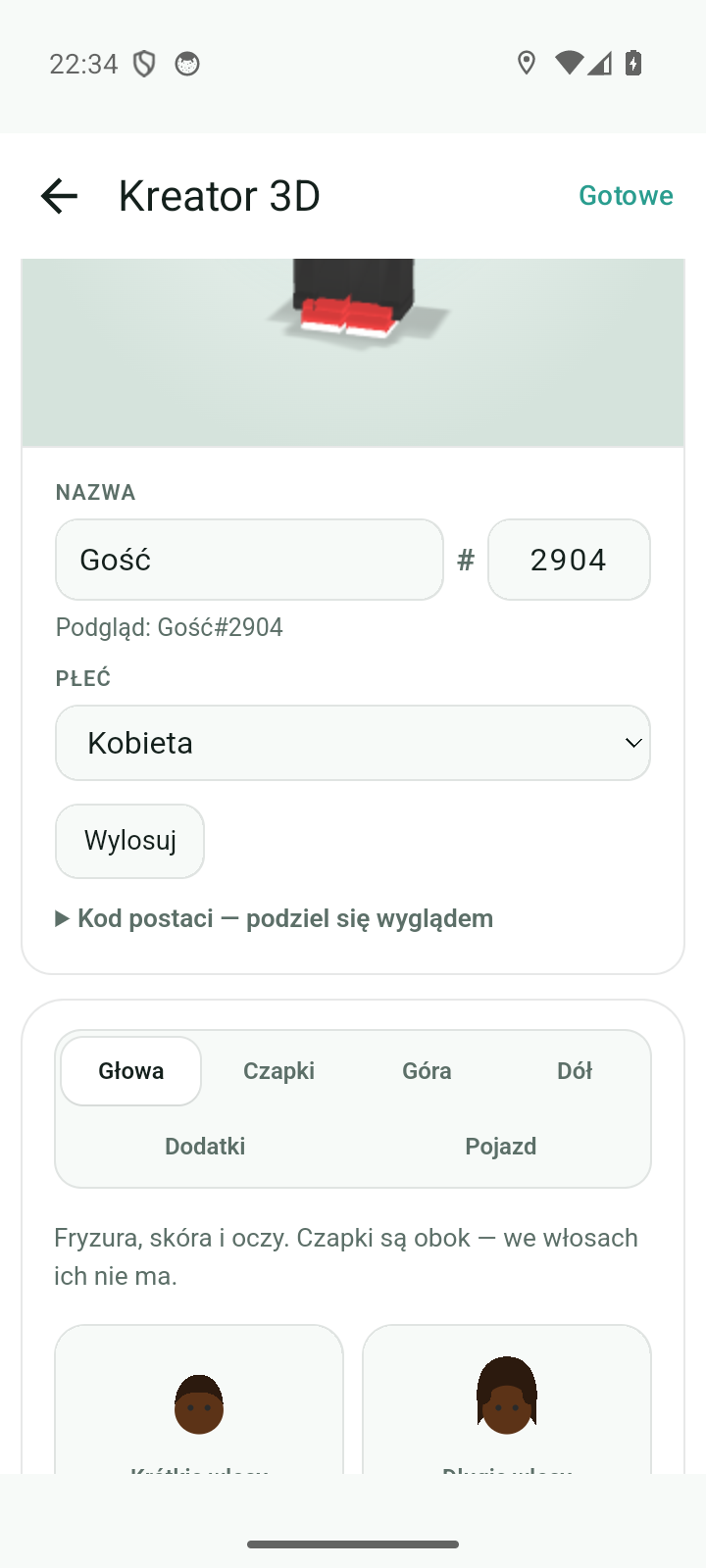
| Element | Where you set it | Notes |
|---|---|---|
| Name | the Name field | from 2 to 24 characters |
| Number (tag) | the field after the # sign | 3–5 letters or digits; the server assigns it on the first save, e.g. Zwiedzacz#2137 (Polish for “Explorer”) |
| Gender | the list next to the name | Woman / Man / Other — the choice goes to the profile only |
| Hairstyle | the Head tab | from short hair to bald |
| Hat | the Hats tab | baseball cap, visor, beanie, bucket hat, cowboy hat, beret |
| Top | the Top tab | T-shirt, hoodie, sweater, jacket, coat, vest, dungarees |
| Bottom | the Bottom tab | jeans, shorts, skirt, cargo, tracksuit, leggings, wide-leg |
| Accessories | the Accessories tab | several at once: glasses, scarf, bag, backpack, lantern, bow, headphones, gloves |
| Vehicle | the Vehicle tab | on foot, bicycle or scooter |
| Colours | swatches next to the elements | skin, hair, eyes, clothes, shoes, accessories |
Every element has ready-made colours, and next to them a Custom colour tile: a colour wheel, a brightness bar, a field with a code in HEX format and a preview of the R/G/B values. In the Look step of the first setup the colours are gathered in a separate tab.
3D preview#
In the creator you see the character live — it is the same “blocky” model that later stands on the map. Drag your finger across the preview to rotate the character and look at it from every side.
- The Skeleton tile shows a preview bone layout. It is a helper tool — it does not change the look.
- Not every change appears in the preview in the same second: some solids (e.g. the vehicle) come onto the screen after a few seconds, so before you decide that something did not save, give the app a moment.
“Randomise” and the character code#
- Randomise draws a whole set of looks — hairstyle, clothes and colours. You can tap until you like the result; the name and the vehicle stay as you set them.
- The Character code (section “Character code — share your look”) moves a look between players. Tap Copy code and send someone a text starting with
AT1-; that person pastes it into the field and taps Apply code — they get an identical figure. - The code carries only the look: colours, hairstyle, clothes and accessories. There is no name, number or stats in it, so you can send it to anyone.
- Pasting a code replaces the whole previous look — together with the accessory colours. It does not mix with what you had before.
Vehicle — what you ride on the map#
The choice from the Vehicle tab travels with the character onto the map: it is what decides what the piece moves with and how route times are counted.
| Choice | Speed | Character on the map |
|---|---|---|
| On foot | 5 km/h | walks |
| Bicycle | 15 km/h | rides a bicycle |
| Scooter | 12 km/h | rides a scooter |
The vehicle is saved together with the character (the Save button in the browser, Done in the app). Other players and bots always walk on foot — only you see your own vehicle (City bots).
Saving and what comes next#
- The name must have 2 to 24 characters, and the number 3–5 letters or digits. A bad value stops the save and shows a message (“Name max. 24 characters”, “Tag: 3–5 letters or digits”).
- Without a network the look is saved locally, and the message says that the sync did not go through (“Saved locally; sync: …”). The save is not lost — the next successful sync catches up with it.
- You see the saved look in several places:
- on the map — the piece moving together with you (Main map),
- in the AR view mini-map — the same figure from your atlas (AR view),
- in the camera view — your legs and shoes when you point the phone down (Camera and photos),
- in the Profile and on the account — a “waist up” preview, without editing (Account and profile).
Documented for app version 0.120.1 (updated 2026-09-26).
Machine translation — the Polish version prevails.