
Playing as a guest#
Guest mode lets you start exploring without registering: the map, routes, stops, finds and the character creator all work right away, and you can create an account later — without losing what you have already done.
What guest mode is#
A guest is a full player, just without an email address and password. The app then creates a technical account with the role guest, and from that moment everything works like on a regular account: progress is stored on the server, the character is yours, finds count.
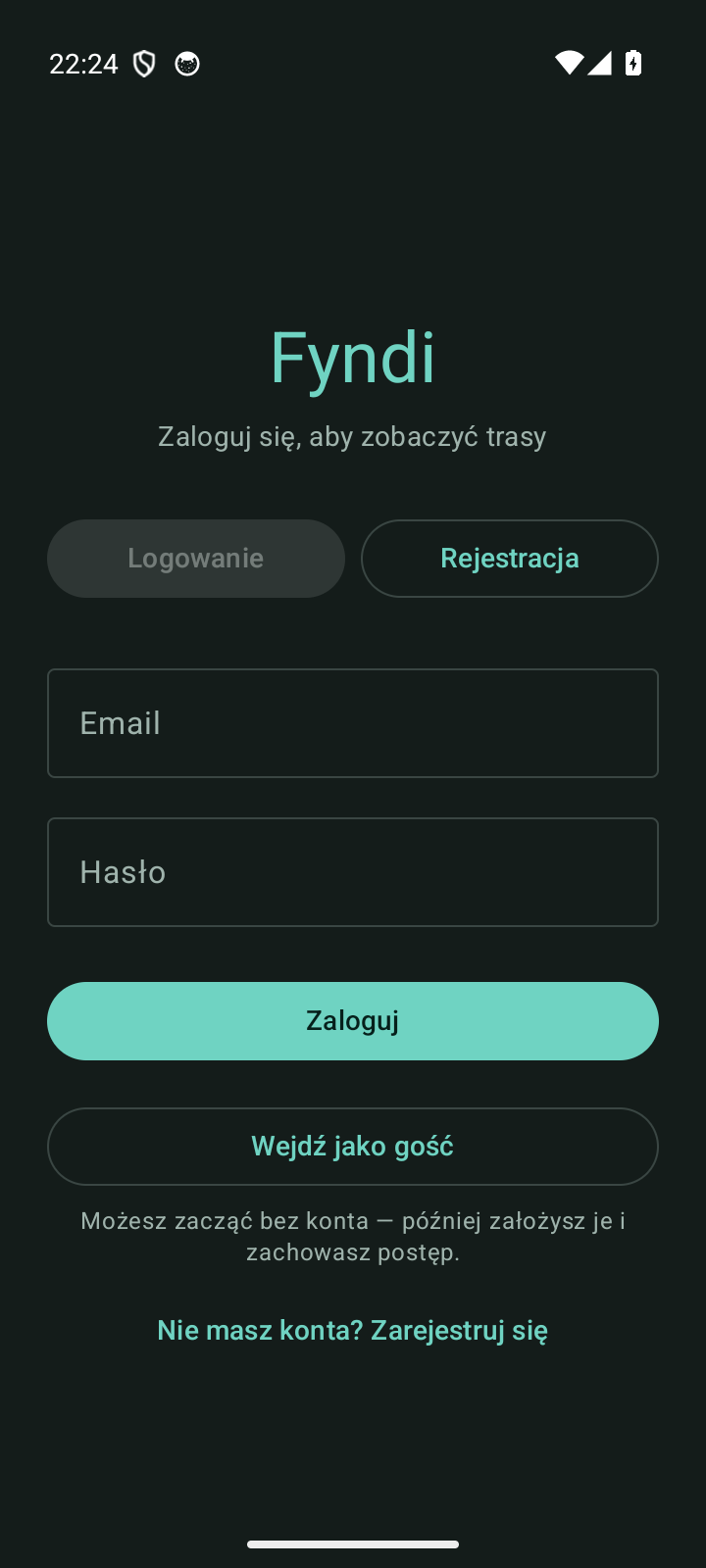
- How to enter: the Continue as guest button on the login screen, below the form.
- When it is handy: to see what the game looks like before giving anyone your email address.
- How it differs from an account: in two ways only — you cannot log in to it from a second phone, and every exit from the app deletes your data (section below). Progress survives only if you turn the guest into an account.
What works for a guest#
| Feature | For a guest |
|---|---|
| Map, legend, GPS | Yes, unchanged — Main map |
| Routes, stops, completing | Yes — Walking a route |
| Finds, bots | Yes — Finds, City bots |
| Character creator and 3D preview | Yes — Character and creator |
| Rewards, lobbies | Yes — Rewards and badges, Exploring together |
| Settings (theme, language, map) | Yes |
| The “Account & security” section | No — a guest has no email or password; a Create account row takes its place |
Create an account without losing progress#
Turning a guest into an account is one short screen — and it is the same player, not a new account: your character, finds, completed routes and kilometres all stay.
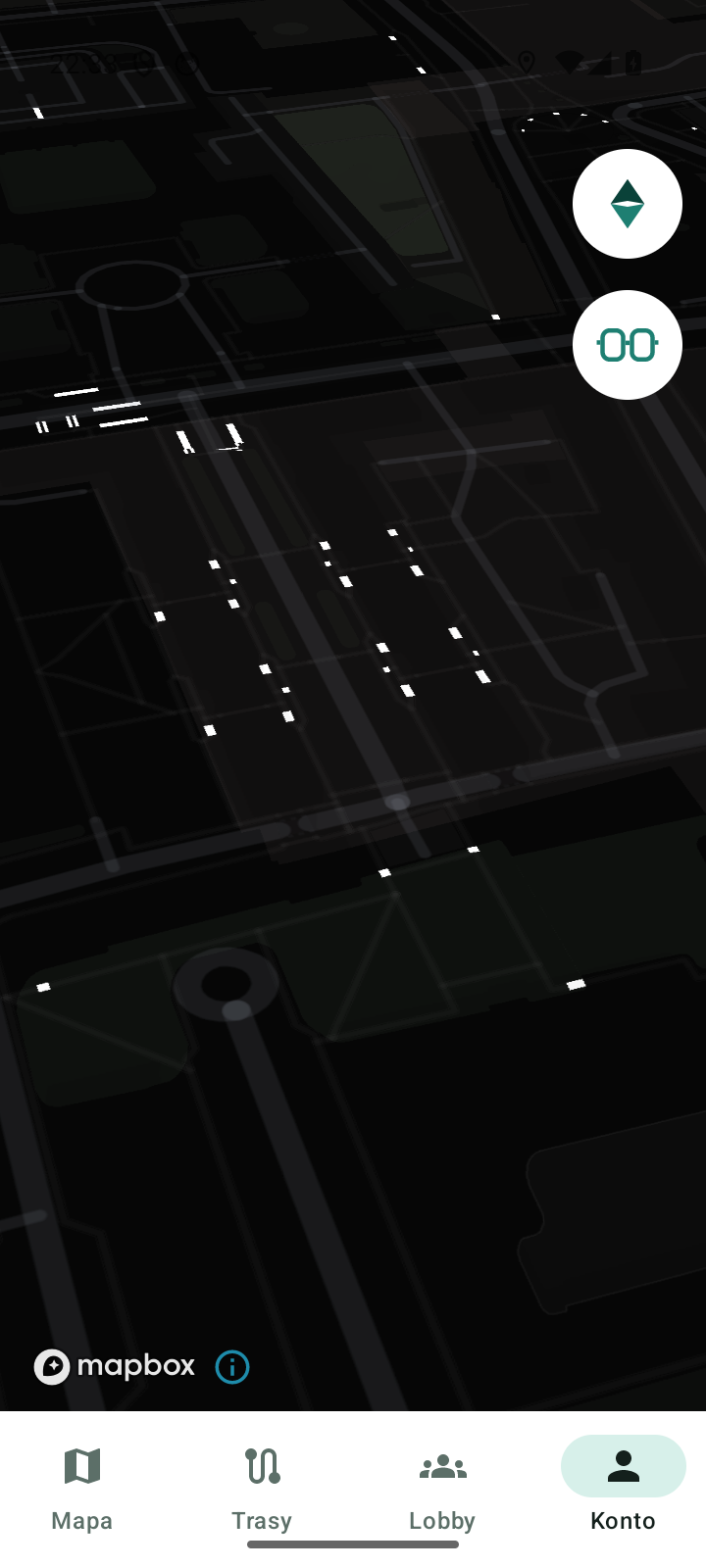
- Open the Profile (bottom bar) and tap the highlighted Create account row — the same screen opens from the Create account button in the app-exit dialog.
- Enter your email address and a password (at least 8 characters). The Show password button lets you check what you typed.
- Tap Create account. A confirmation appears — Account created — with the address you will log in with from now on.
- The Create account row disappears from the Profile — you are a regular player, and your progress stayed (Account and profile).
Leaving guest mode deletes your data#
This is the most important difference from a regular account: a guest account is temporary. The data disappears in four situations — all of them on the server, not just in the phone:
| How you leave | What happens |
|---|---|
| Leave in the exit dialog | The guest account and all progress are deleted |
| Log out in account settings | Same as above — for a guest, “Log out” deletes the account |
| Delete account | Deletes the guest account together with its data |
| The app closed without coming back | A server-side safety net cleans up the abandoned guest session |
The exit dialog and what its buttons mean#
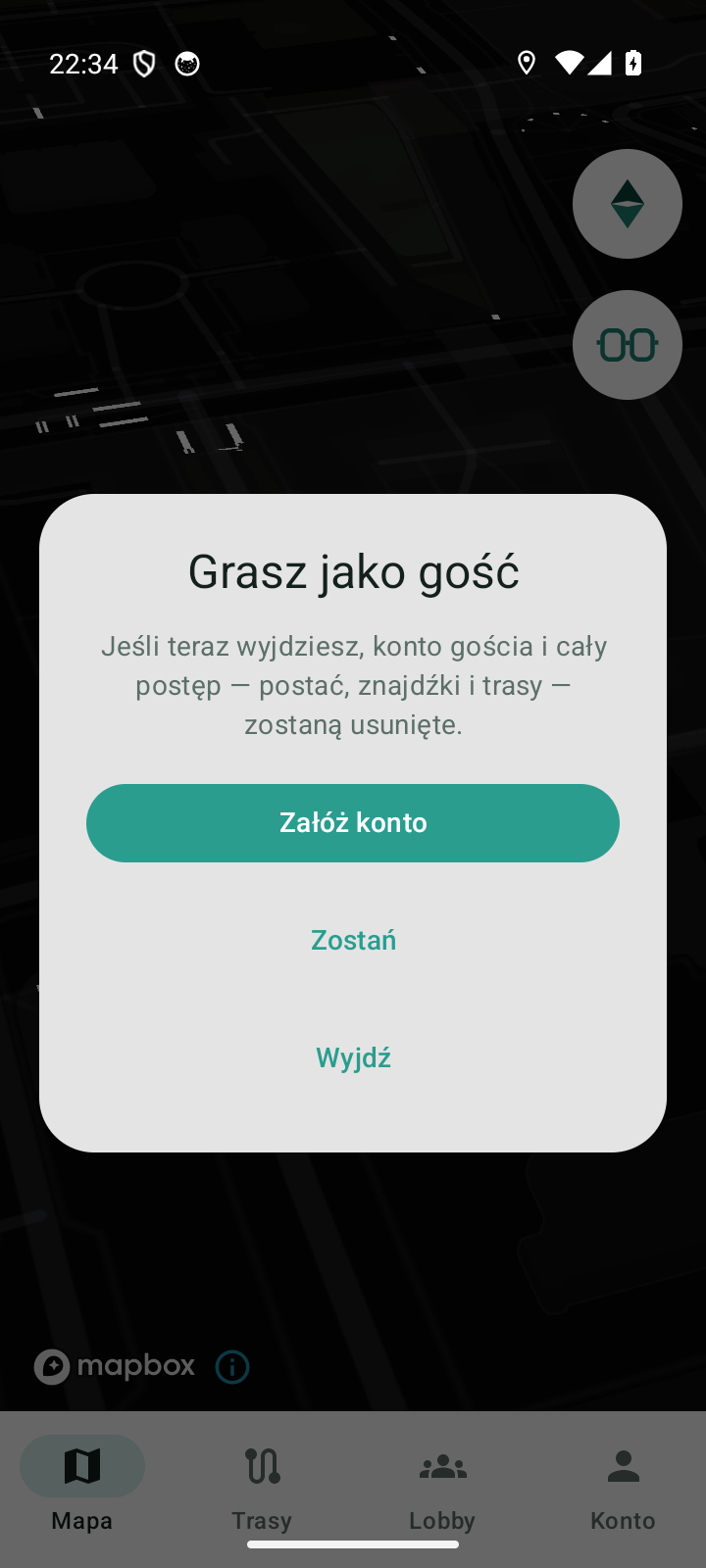
When a guest tries to leave the app, a question appears — You are playing as a guest — warning that the account and all progress (character, finds and routes) will be deleted. There are three buttons:
- Create account — opens the account-creation screen (the same one as the Profile row); once the account exists, you leave as a regular player, without losing data,
- Stay — you return to the game, nothing happens,
- Leave — closes the app and deletes the guest account together with its data.
A player with a real account does not get this question — leaving closes the app immediately (Account and profile).
Documented for app version 0.120.1 (updated 2026-09-26).
Machine translation — the Polish version prevails.